How to change the font size in Windows XP
Question:
I was having problems with my system and I reinstalled windows 2003. My problem is now my type is very small. I tried increasing the font size, but it still didn’t get it back to the original size. My computer came pre-installed from Dell. Did I mess it up?
Answer:
I’m guessing that your PC didn’t come with “Windows 2003”. You may be confusing that with “Office 2003”. And your PC most likely came with “Windows XP” or “Windows Vista”. If you have Vista loaded, let me know. Otherwise, let’s treat your problem as if you have Windows XP loaded. These instructions will show you how to change the font size in Windows XP.
Start your computer. In Windows, find an empty spot on your desktop, a spot where there are no icons. RIGHT-click on this empty spot, and choose “Properties” from the menu that pops up. You should then see a window appear titled “Display Properties”.
In this Display Properties window, click the “Settings” tab. You’ll see something similar to this:
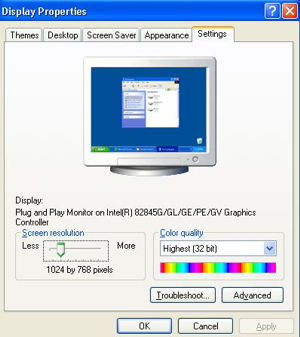
Notice the “Screen Resolution” slider. If your PC’s font sizes appear too small after reloading your system to factory defaults, this is one possible culprit. Slide the slider to the left. Select sizes like “1024 by 768“, or “800 by 600“, and click the “Apply” button to try them out. The further left you slide the slider (and then click “Apply”), the more the screen will “grow”: You will be able to fit less on the screen, but everything on it will be bigger, including your fonts.
If this fixes your problem, great! If it doesn’t, keep reading:
Put the “Screen Resolution” slider back to where it was. Then in the tabs at the top of the Display Properties window, click “Appearance”. You’ll see something like this:

Change the “Font size” selector on the bottom of the window. Instead of “Normal”, you can choose values like “Large” or “Extra Large”. Try picking on of these, and click the “Apply” button to make those changes take effect.
One of these two methods should show you how to change the font size in Windows XP.

tulo:
i found it hard to figure it out,how to change the fonts but thanks to you guys finally i did it.thanks!
27 November 2009, 9:44 pmCindy:
THANKS I can see now LOL
7 February 2010, 12:55 amJean:
It worked – a thank you!!!!
3 April 2010, 9:44 amelroy koch:
My fonts have changed in my outlook. I can recieve messages in the regular sizing but when I type or look at the font size of the tabs or block formats they are smaller than they used to be.
15 June 2010, 1:11 pm